 Raspberry Pi MQTT Monitor
GitHub ↗
Raspberry Pi MQTT Monitor
GitHub ↗
Configuration
All options live in src/config.py. Key settings:
| Setting | Description |
|---|---|
mqtt_host | MQTT broker address |
mqtt_user / mqtt_password | MQTT credentials |
mqtt_port | MQTT port (default 1883, 8883 for TLS) |
mqtt_tls | Enable TLS/SSL for the MQTT connection |
mqtt_tls_ca_certs / mqtt_tls_insecure | Optional CA file for a self-signed broker cert, or skip cert verification |
mqtt_websockets / mqtt_websocket_path | Connect over MQTT-over-WebSockets (ports ~9001/8084) and its URL path |
mqtt_discovery_prefix | HA discovery prefix (default homeassistant) |
mqtt_topic_prefix | Topic prefix (default rpi-MQTT-monitor) |
mqtt_uns_structure | Optional UNS prefix prepended to all topics |
discovery_messages | Publish HA auto-discovery config messages |
service_sleep_time | Seconds between readings when running as a service |
update_check_interval | Seconds between update checks (default 3600) |
use_availability | Mark sensors unavailable in HA on read failure |
retain | Set MQTT retain flag on published messages |
qos | MQTT QoS level (0, 1, or 2) |
language | UI language: en, de, fr, bg |
ha_device_name | Override hostname as the HA device name |
hass_host / hass_token | Home Assistant API URL and long-lived token |
restart_button | Add a restart button to HA |
shutdown_button | Add a shutdown button to HA |
display_control | Add display on/off buttons to HA (auto-detects backend: see below) |
display_on_command / display_off_command | Optional custom commands for display control (override auto-detection) |
group_messages | Send all values as a single CSV message (disables discovery) |
Full configuration reference: Configuration wiki.
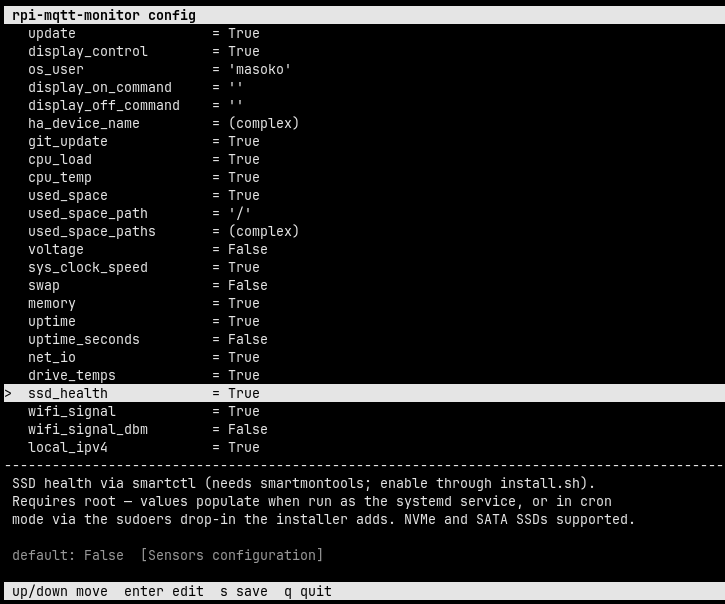
Interactive configurator
Run rpi-mqtt-monitor --config to edit these settings from a terminal UI instead of
editing config.py by hand. Move through the settings with the ↑/↓
arrows; each shows its description and default value. Press Enter to edit the
selected value, s to save, and q to quit. Comments, ordering,
and formatting in config.py are preserved.
Display control backends
With display_control = True, the monitor on/off buttons auto-detect a working
backend for the current environment:
| Environment | Backend used |
|---|---|
| X11 desktop | xset dpms force on/off |
| wlroots Wayland (Pi labwc/wayfire, sway) | wlr-randr --output <out> --on/--off |
| Raspberry Pi | vcgencmd display_power 1/0 |
| GNOME / generic Wayland | ddcutil (DDC/CI, hardware level) |
GNOME and most non-wlroots Wayland compositors expose no CLI to force monitors off, so
external monitors are controlled over DDC/CI with ddcutil. When
you enable display control during install.sh, the installer detects your backend
and offers to perform this setup for you. To do it manually:
sudo apt install ddcutil
echo i2c-dev | sudo tee /etc/modules-load.d/i2c-dev.conf
sudo modprobe i2c-dev
sudo usermod -aG i2c $USER     # the service runs as this user; re-login or restart the service afterwards
ddcutil detect                 # confirm your monitor(s) are listed
Each monitor must have DDC/CI enabled in its on-screen (OSD) menu — some ship with it off.
If none of the above fits your setup, set display_on_command /
display_off_command in config.py to any custom command, which always
takes precedence over auto-detection.